Set up a Bulletin Board System (BBS)
Bulletin Board Systems (BBSes) were something of a precursor to the Internet. Back then, you would dial into such a system over a telephone line using a modem and terminal emulator to—for example—download files, exchange messages, or play simple arcade games. If you find this history interesting, I recommend the FidoPedia page as a starting point for further research; going into detail here would take us too far afield.
I ran a system myself in the 1990s—initially only at night (under MS-DOS), since the single analog phone line had to be kept free for voice calls during the day. Once I got an ISDN line, I ran it 24/7 under Windows 95. I used ProBoard (I believe it was version 2.03?) and later added a FidoNet "tosser" to the setup. My node numbers were 2:240/5496 and 2:240/5497, and I would fetch my messages twice a day from a higher-level FidoNet node in Hamburg. While it was possible to read and reply to messages online within the BBS, doing so wasn't practical due to the rather high telephone charges. Although I could access my BBS locally without incurring phone costs, I used software (CrossPoint) that could fetch all unread messages—and send outgoing ones—in a single, compressed burst. This way, I would establish a connection once to retrieve new messages, read them offline at my leisure, and—if I had written any replies—upload them during a subsequent connection so the BBS could sort them into the system. This method allowed me to repeatedly test the interaction between the BBS software and the reader software—a wise move whenever there was a software update, as it prevented users from wasting money on failed attempts.
Initial thoughts
Of course, I’m itching to look for that last backup from—what was it, 1998?—to breathe new life into the old system. However, I certainly won’t be connecting a phone line, and without one, FidoNet probably won’t be a viable option—after all, the application form itself asks for a phone number for the data connection. That said, a freshly set up system running the software used back then would also stir up memories, and ProBoard actually still exists—it was last updated in 2023! But how practical would that be? 16-bit software requires quite a bit of effort; it won’t run on modern (64-bit) Windows without extra workarounds, since the OS no longer supports 16-bit applications. An older, 32-bit version of Windows would be a security nightmare, so using a virtual machine would be the only real option. But since I definitely don’t want to dedicate actual hardware to a project like this, I’d have to run Windows 11 in a VM, which in turn would need to run DOS instances in multiple virtual machines (one for each line). While technically feasible, that would be an absolute resource-hogging monster! And we haven’t even gotten into the nitty-gritty of the technology yet; after all, a DOS-based system would want to interface with a modem. That would require some sort of legacy driver to translate AT commands into Telnet or SSH. And if a virtual machine is unavoidable anyway, wouldn’t a lightweight, GUI-less Linux distribution be the most logical solution?
The software
In the end, the deciding factor was the need for a Fossil driver. What I found for use with ProBoard was anything but up-to-date; aside from security concerns regarding such old software, what about support if something went wrong? I looked at many BBS systems and, during my research, came across one called Mystic that could handle Telnet and SSH without needing extra software like a Fossil driver. So, I dove into its documentation and was surprised to read that the software was available for both Windows (32- and 64-bit) and Linux. Insert high five here!
The installation
I set up a lightweight Debian instance in a virtual machine—just the essential shell commands and an SSH server to connect to it. Although you often read that such systems need to run with root privileges, I would strongly advise against it. The issue is simply the permission required for software to bind to a TCP port below 1024. So, the simple solution is to use a port above that range. Let's get started.
Create a user
I assume that Linux is installed and that you have your own user account with sudo privileges to use this guide!
sudo adduser --home /opt/mystic mystic
The command creates the user, a group with the same name, and the home directory—which we immediately remove again.
sudo rm -r /opt/mystic
Software Installation
Since Debian does not support the RAR archive format by default, the extraction tool must be installed separately.
sudo apt update
sudo apt install unrar-free
Next, we download the software directly in the shell and extract it (here, the 64-bit Linux version):
wget https://mysticbbs.com/downloads/mys112a48_l64.rar
unrar -x mys112a48_l64.rar ./mystic
Let us then install it first with root privileges:
cd mystic
chmod +x ./install
sudo ./install
The installer then tries to determine the appropriate code page and asks for help:
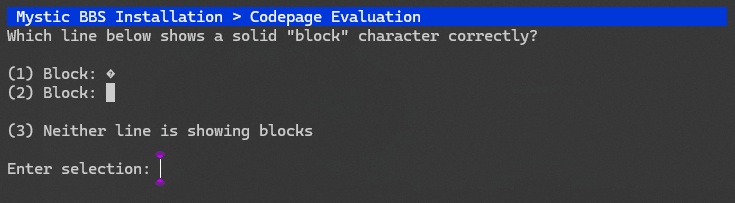
In meinem Beispiel war also 2 die richtige Antwort. Im nächsten Bild wähle dann INSTALL MYSTIC BBS und passe den Pfad unter System Directory wie folgt an:
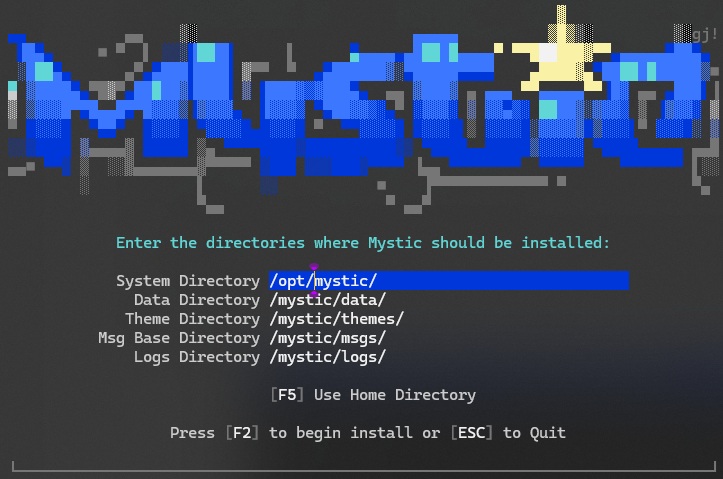
If you confirm the modified path by pressing ENTER, it will be applied to all other lines, and a firm press of the F2 key starts the installation. Immediately afterwards, we need to set up the Sysop and adjust our configuration, as instructed by the installation wizard:
Important: In the configuration (mystic -cfg), you must change the ports used (for protocols such as Telnet, SSH, etc.) to values above 1024; otherwise, the BBS will fail to start later on.
cd /opt/mystic
sudo ./mystic -l
sudo ./mystic -cfg
If the BBS were to run as root, we would already be finished and could start Mystic; however, for long-term operation, that would be not only insecure but also suboptimal, as we would have to handle stability ourselves—something we prefer to delegate to systemd. To this end, we will grab a startup script from vswitchzero and ignore what Mike has to say about running it as root.
cd ~
wget https://vswitchzero.com/wp-content/uploads/2019/09/mystic-systemd.zip
unzip mystic-systemd.zip ~/
cd ~/mystic-systemd
Now, the paths need to be entered into the scripts. So, use your preferred editor (e.g., nano ./mis-start.sh) and modify the two files mis-start.sh and mis-stop.sh as follows:
MIS_PATH=/opt/mystic
MIS_OPTS=daemon
MIS_SHUT_OPTS=shutdown
Before we can set up the daemon, the service description in the mis.service file also needs to be modified. So, open that file in your preferred editor and modify the [Service] section as follows:
[Service]
Type=forking
# The mis daemon needs to start as root as discussed above, or will fail to bind TCP ports.
User=mystic
# Be sure to set the correct paths and script names below:
ExecStart=/opt/mystic/mis-start.sh
ExecStop=/opt/mystic/mis-stop.sh
Now, simply copy the three modified files to their destination and make two of them executable:
sudo cp mis-start.sh /opt/mystic
sudo cp mis-stop.sh /opt/mystic
sudo chmod +x /opt/mystic/mis-start.sh
sudo chmod +x /opt/mystic/mis-stop.sh
sudo cp mis.service /lib/systemd/system
And then we can hand over the program directory to the designated user:
sudo chown -R mystic:mystic /opt/mystic
Now we can set up and start the service:
sudo systemctl enable mis.service
sudo systemctl start mis
You should now be able to connect to your BBS via Telnet.
Administration and Maintenance
While it is technically possible to use the local login (mystic -l) and configuration (mystic -cfg) options, this would have to be done using the mystic user account; I know from experience that when you're in a rush, it is often quicker to just reach for the sudo command. That might work out fine, but there are no guarantees. If a new file is created in the process, the BBS won't have access to it at runtime; this will either result in error messages for the user or cause the BBS to crash—potentially preventing systemd from restarting it.
It is better to log in via a terminal emulator, just like any other user. This ensures that all changes are automatically executed with the correct permissions.
Terminal emulation
For quick, occasional access, the terminal emulators included with the operating systems suffice. However, the sometimes advanced formatting used by BBSs is better handled by specialized software. On Windows 11, I use SyncTerm, which offers various presets as well as a built-in "phonebook."
JCS-Net BBS
My Bulletin Board System can be accessed via Telnet (port 23232) at home.JCS-Net.de. In keeping with 1990s tradition, I have also made the two archives used here available for download there. As always, feel free to leave comments in the Fediverse.
Update 09/05/2025: I’ve just taken the BBS offline. Over the course of more than three months — despite announcements on other BBSs — I had only a handful of visitors, and all of them visited just once.